How to Create a Digital Business Card, Step by Step
Create your digital business card in a few minutes: enter your details, save the card to Apple or Google Wallet, and share it with one scan. No app needed.
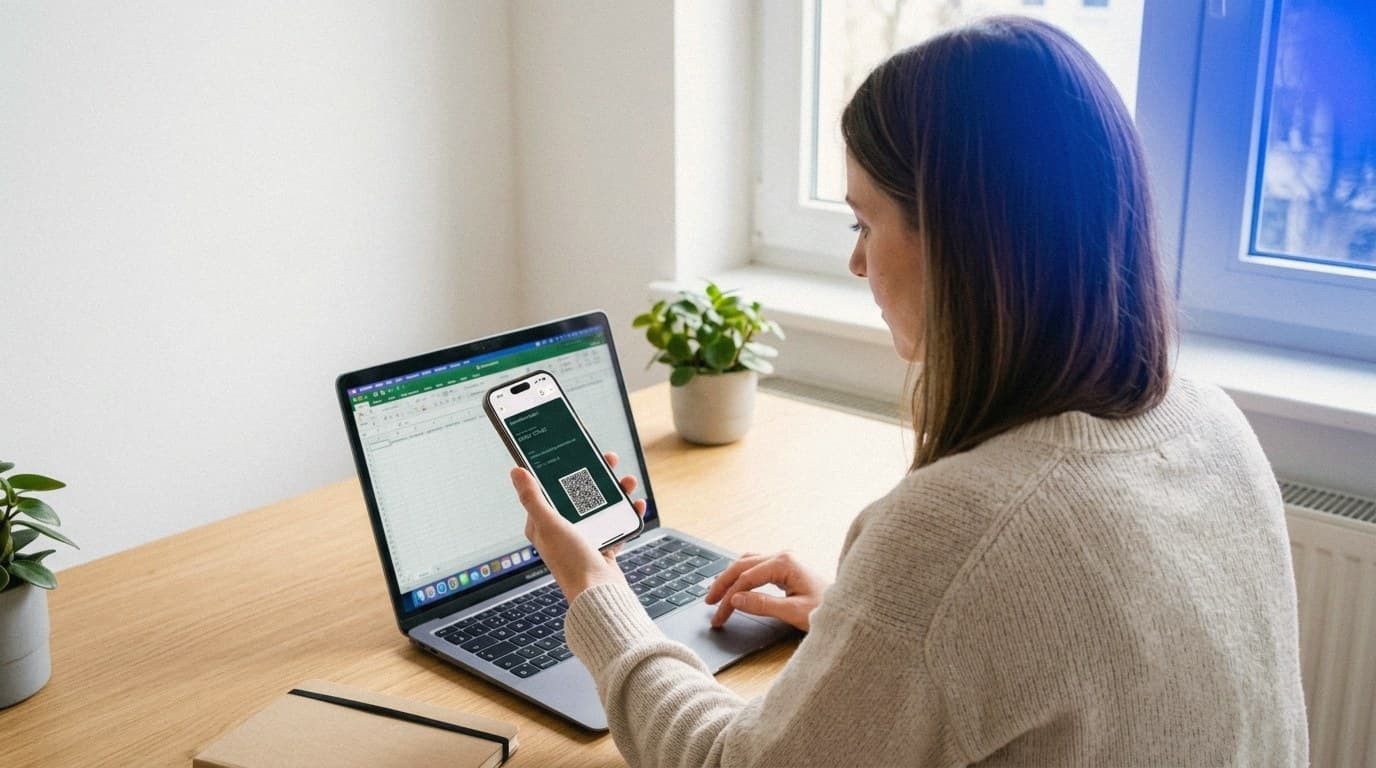
Creating a digital business card is a few minutes' work: you enter your details in a generator, pick a design, and save the finished card to Apple or Google Wallet. From then on, you share your details with one scan of the QR code on your card. No app for you, no app for the person receiving it. In this guide, I'll walk you through the five steps, show you what belongs on the card, and answer the questions that come up most.
Key Takeaways
- You create a digital business card in a browser: enter your details, pick a design, save the card to Apple or Google Wallet. No account and no app required.
- Sharing is one scan: the other person points their camera at your QR code, and your details land accurately in their address book.
- Keep the card focused: name, role, phone, email, and one link, ideally your LinkedIn profile or a booking page.
- With DigiCard Pro, the card is a one-time payment, no subscription. Choose the Editable Card if you want to update details and design later.
What do you need to create a digital business card?
A browser and your contact details, nothing else. A digital business card is a pass in your phone's wallet, like a boarding pass or a concert ticket, with your contact details encoded in a QR code on the card. Because it's created on a website and saved straight to Apple or Google Wallet, there's nothing to install and no account to set up.
That's worth pausing on, because most tools work differently. Many providers build their card around an app: you download it, create a profile, and often pay monthly on top. If you'd rather skip all of that, the wallet route is the simplest path, and it's the one this guide follows. For the full argument, see our guide to the digital business card without an app.
The wallet itself is technology your contacts already use. Juniper Research counts around 4.4 billion digital wallet users in 2025 and expects more than 6 billion by 2030:
By 2030, that's over 75% of the world population (Juniper Research, 2025). Your card lives where boarding passes and payment cards already do.
How do you create a digital business card in five steps?
The whole process runs in your browser: choose what goes on the card, enter your details, pick a design, create the card, and save it to your wallet. Here it is step by step, the way I'd do it before a conference.
-
Decide what belongs on the card. Name, role, phone number, email address, and one link. Two minutes of thought here saves your card from becoming a cluttered mini-CV.
-
Open the card generator. Go to the card generator in any browser, on your laptop or straight on your phone. There's nothing to install and no account to create.
-
Enter your details and pick a design. Type in your details and choose a color that fits your brand. You see a live preview of your card, QR code included, while you type.
-
Create the card. With DigiCard Pro, this is where the one-time payment happens, no subscription. Your finished card is ready right after, with passes for both wallets included.
-
Save it to Apple or Google Wallet. Open the link to your card on your phone and tap Add. From now on, it's ready whenever your phone is.

That's the full setup. There's no step six, and that's the point: the fewer steps between you and a ready card, the more likely it actually gets made before the next event, not after.
What should go on your digital business card?
Less than you think. The card's job is to let the other person reach you, not to summarize your career. This mix has proven itself:
-
Full name: so the person remembers who they spoke with.
-
Company and role: the professional context at a glance.
-
Phone number: the direct line for quick follow-ups.
-
Email address: still the default for business contact.
-
One link: for most people their LinkedIn profile; a booking page if scheduling calls is part of how you work.
Everything else dilutes the card. If someone wants your full background, your LinkedIn profile is one tap away from the saved contact, which is exactly where that information belongs.
If you're a freelancer, make your role specific: “Technical copywriter” tells a new contact more than “Freelancer.” Then choose the link that helps them take the next step. A designer can show a portfolio, a developer can share selected projects, and a consultant can link a booking page. Use the destination you actually keep current, and check that it works on a phone before sharing your card.
How do you save the card to Apple and Google Wallet?
Both passes are included with every DigiCard Pro card, so you don't choose a platform, and neither do your contacts. After creating your card, you get a link to it. Open the link on your phone, and the right wallet takes over.
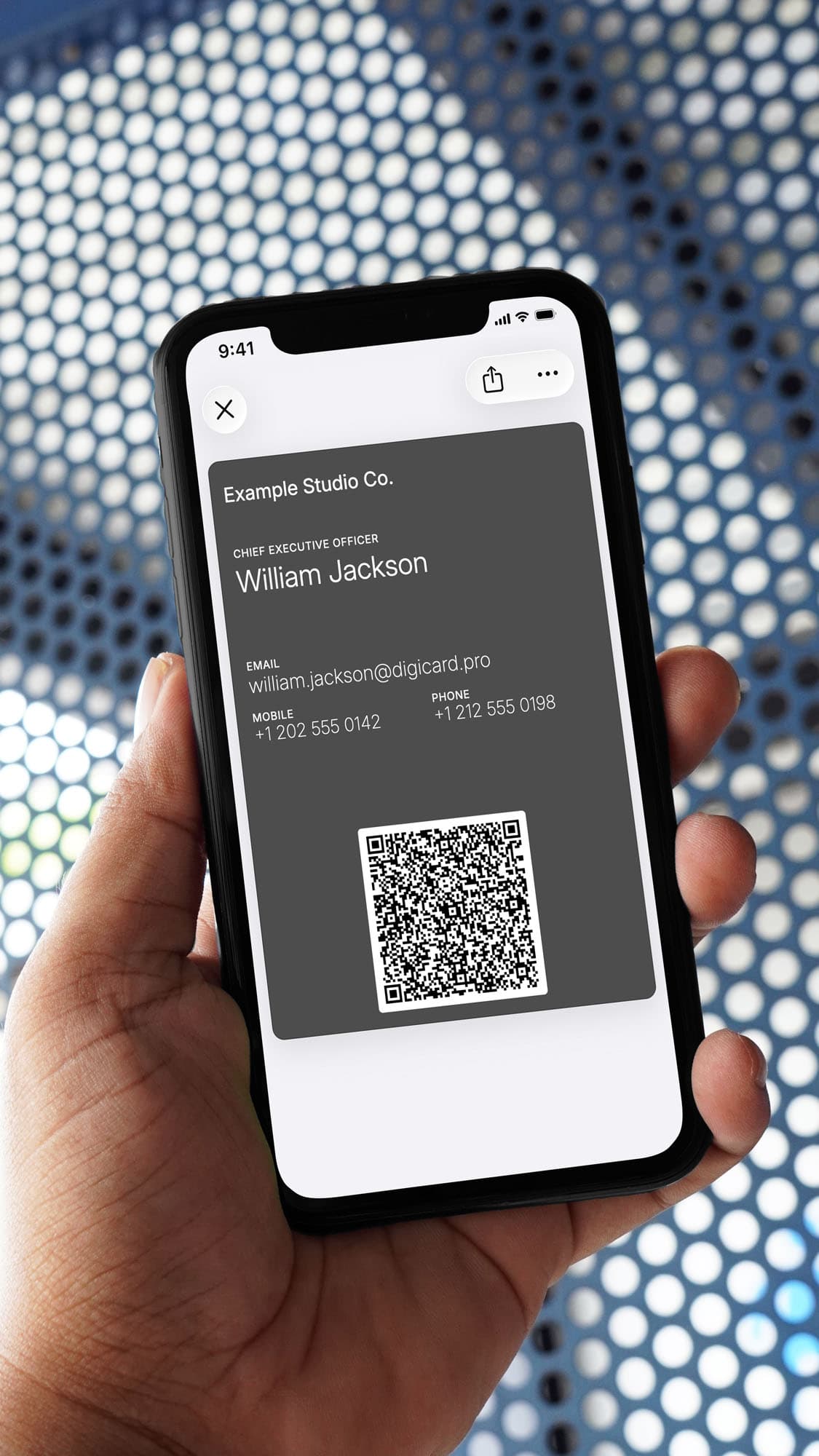
On the iPhone, a preview of your card appears and you tap Add in the top-right corner. The full walkthrough is in the guide to the Apple Wallet business card. On Android, you tap the Add to Google Wallet button, and the card is saved. That path is covered step by step in the guide to the digital business card for Android. For how the two wallets compare in daily use, see the overview of the wallet business card.
Once saved, the card works offline: your details are encoded in the QR code itself, so a packed conference hall with overloaded Wi-Fi doesn't slow you down.
How do you share your new card in conversation?
You open the pass in your wallet, your QR code appears, and the other person scans it with their normal camera app. Their phone offers to save the contact, they tap once, and your details are in their address book, spelled correctly, with the right number.
There's a good reason this flow works even with people you've just met: scanning is second nature by now. Statista expects more than 100 million smartphone users in the US alone to scan QR codes in 2025 (Statista, 2025). Your counterpart has almost certainly scanned a menu, a ticket, or a payment code this month. A business card is the easy case.
Run through the flow once before your first real conversation, and it'll feel effortless when it counts. If you want the broader picture of what a digital business card is and where it fits, our help article What is a digital business card? covers it.
Common questions about creating a digital business card
What does a digital business card cost?
With DigiCard Pro, it's a one-time payment, no subscription. You create the card in the generator, see a live preview first, and pay only for the finished card for Apple or Google Wallet. If you only need a bare QR code as an image, the vCard QR code generator is free, as explained in the guide to the free QR code business card.
Does the other person need an app to receive my card?
No. Every modern smartphone reads QR codes with its camera. The other person points their camera at your code, taps the preview, and your details are saved in their address book. No download, no signup.
Can I change my details after creating the card?
That depends on the variant. The fixed card stays as it is after creation. You can update the details and design of an Editable Card anytime, and the pass refreshes automatically in Apple Wallet and Google Wallet.
Does the card work without an internet connection?
Yes. Your details are encoded directly in the static QR code, so scanning works offline, in a packed conference hall or on a plane. Only the separate LinkedIn QR card links to your online profile and needs a connection.
Your next introduction is coming either way. Create your card in the card generator, save it to your wallet, and walk into the next conversation with your details one scan away.