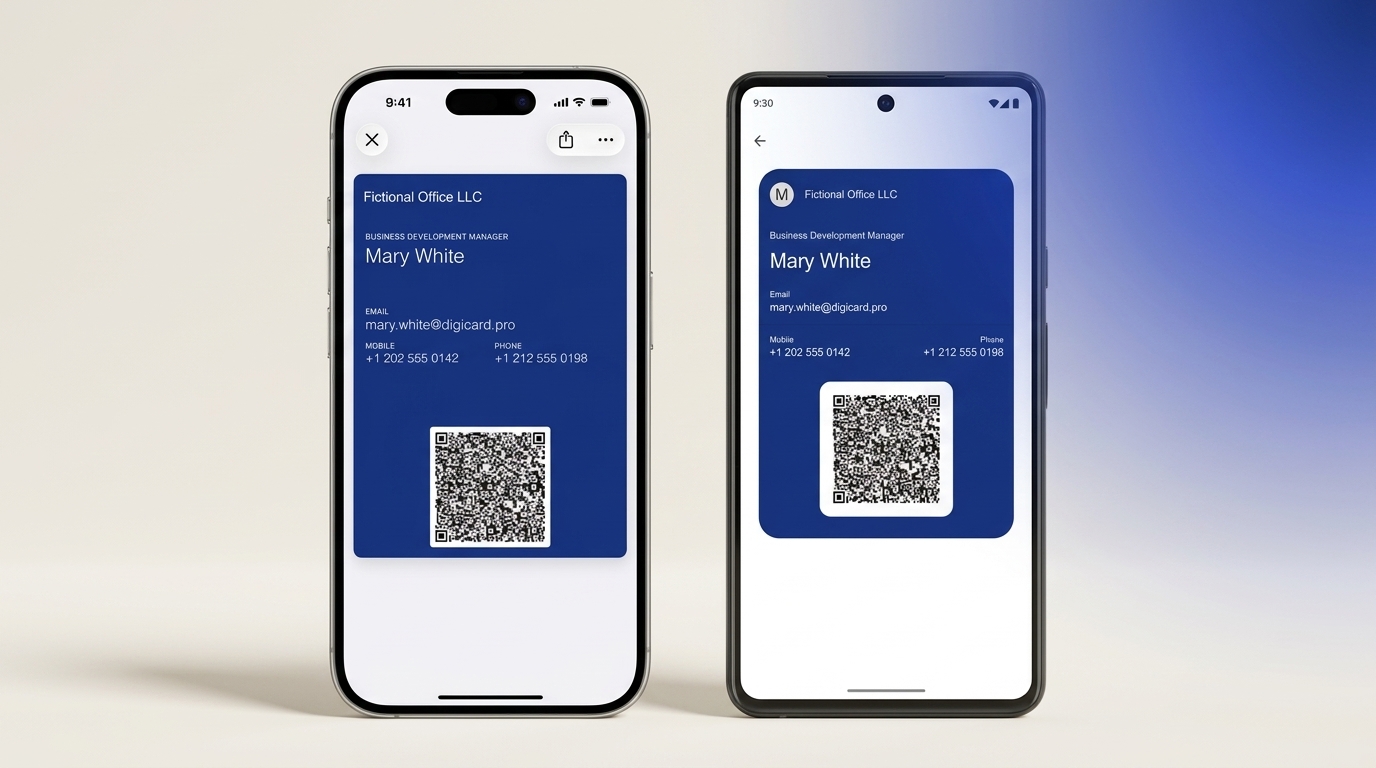
Your Digital Business Card in Apple & Google Wallet
Your digital business card belongs in your phone's wallet. The same card works in Apple Wallet and Google Wallet, and a quick QR scan shares your details.
You save your digital business card as a pass in Apple Wallet or Google Wallet, right next to your boarding passes and tickets. Which wallet you use comes down to your phone: Apple Wallet on an iPhone, Google Wallet on Android. When you create a card with DigiCard Pro, you get both passes by default, so there's nothing to choose up front. This guide is the hub for the rest: what a wallet card is, how Apple and Google differ, and how you save and share yours with a quick QR scan.
Key Takeaways
- Your digital business card is a pass in Apple Wallet or Google Wallet. Which one is right for you depends on your phone, and the card itself works on both.
- You share it by QR code: open the pass, the other person scans it with their camera, and your details land in their address book. Nobody installs an app.
- Paper cards rarely last the week, with about 88% thrown out within seven days (Adobe, 2016). A card in your wallet stays with you as long as your phone does.
What is a digital business card in Apple or Google Wallet?
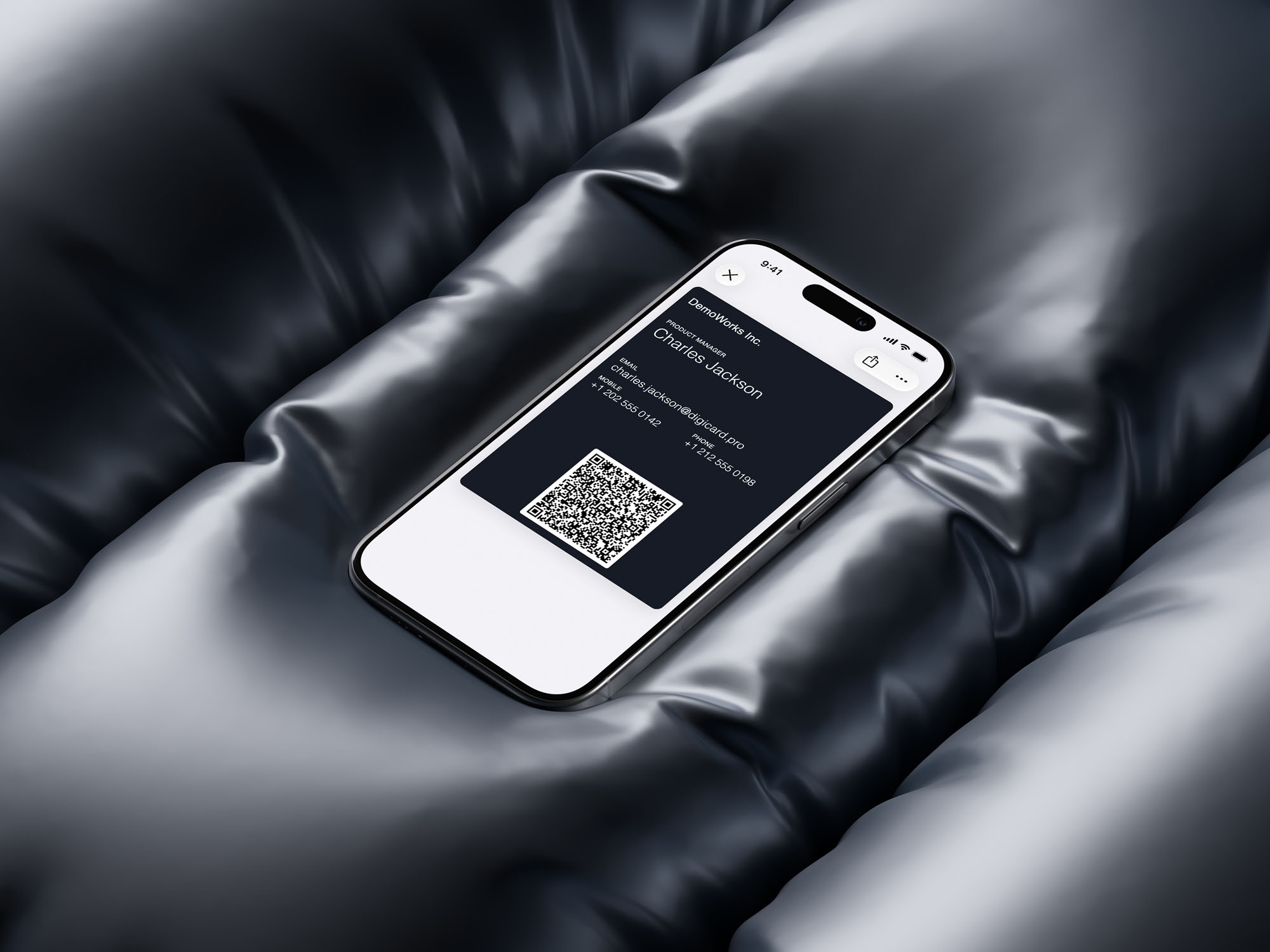
A digital business card in your wallet is a contact card, saved as a pass in Apple Wallet or Google Wallet, that shares your details through a QR code. It sits beside your tickets and boarding passes, and it isn't an app you install. It's a pass you save once and then always have on you.
The reason this feels natural is that the hard part is already solved. People open their wallet constantly for payments, tickets, and passes. In 2025, roughly 4.5 billion people, about 54.9% of the world, used a digital wallet (Capital One Shopping, 2025). Adding a business card to that same wallet asks nothing new of anyone.
Once it's saved, the pass is ready whenever you need it, with nothing to set up and no program running in the background. The QR code sits inside the pass itself, not in some separate image you'd have to dig out of your photos. From my own experience, that's the part people find surprising: a card in your wallet sounds technical, yet it's the opposite of complicated.
Apple Wallet or Google Wallet: what's the difference?
The difference is mostly your phone, not the card. On an iPhone you save your card to Apple Wallet; on an Android phone you save it to Google Wallet. Because DigiCard Pro generates every card for both, you can't pick the wrong one, whether you carry an iPhone or an Android phone yourself.
Day to day, you barely notice the difference. Saving the card works almost the same on both, and sharing by QR code is identical. There's one small exception, and it's iPhone-only: your card can appear on the lock screen if you use the Editable Card and set a location for it. It doesn't happen on its own, and Google Wallet has no such feature.
| What matters | Apple Wallet (iPhone) | Google Wallet (Android) |
|---|---|---|
| Device | iPhone | Android phone |
| Adding the card | "Add to Apple Wallet" | "Add to Google Wallet" |
| QR code for sharing | Yes, inside the pass | Yes, inside the pass |
| App on their end? | No | No |
| On the lock screen | Optional, location-based (account) | Not available |
So you don't actually have to decide which wallet is "better." To get the most out of each one, the Apple Wallet business card guide walks through the iPhone side, and the Google Wallet walkthrough for Android covers the same steps on an Android phone.
How do you save your card to your wallet?
You save the finished card with a single tap. After the last step in the generator, you get your pass and tap "Add to Apple Wallet" or "Add to Google Wallet." That's it, the card is saved and ready to use right away.
Before that, you create the card in a browser, on a laptop or straight from your phone. There's no app to install, and the simplest variant doesn't even ask for an account. The path is deliberately short:
-
Open the DigiCard Pro generator in any browser.
-
Fill in the details you want to share and watch the live preview update as you type.
-
Add the finished pass to your wallet. Both passes are generated, so it works whichever phone you carry.
A quick word on what belongs on the card: less is more. A card with five ways to reach you is harder to act on than one with a single clear path. If the whole idea is new to you, our overview of what a digital business card is is a good place to start before you build one.
How do you share your wallet business card?
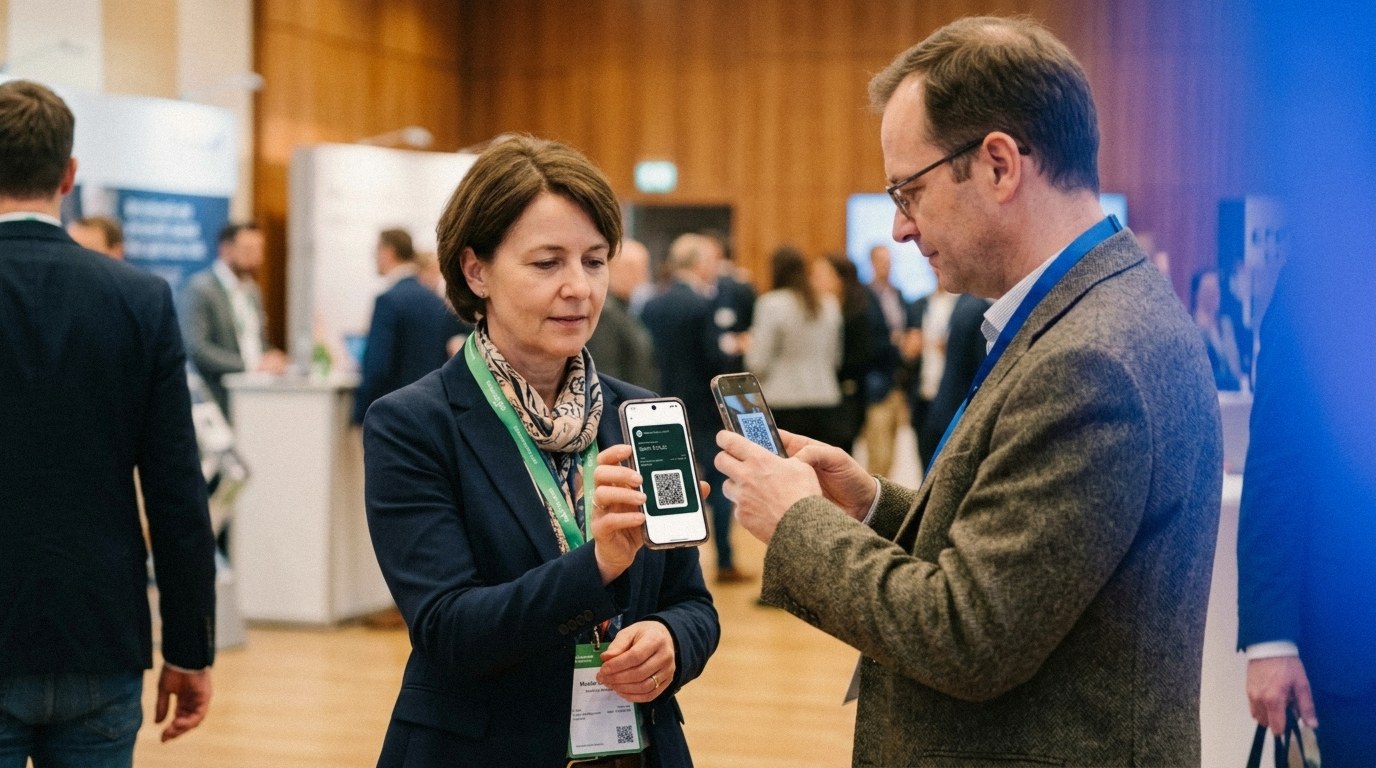
You share it by opening the pass so the QR code is on screen, then letting the other person scan it with their camera. Your details save straight to their address book, with no typing and no errors. Because the QR code holds your details directly, the scan even works with no internet.
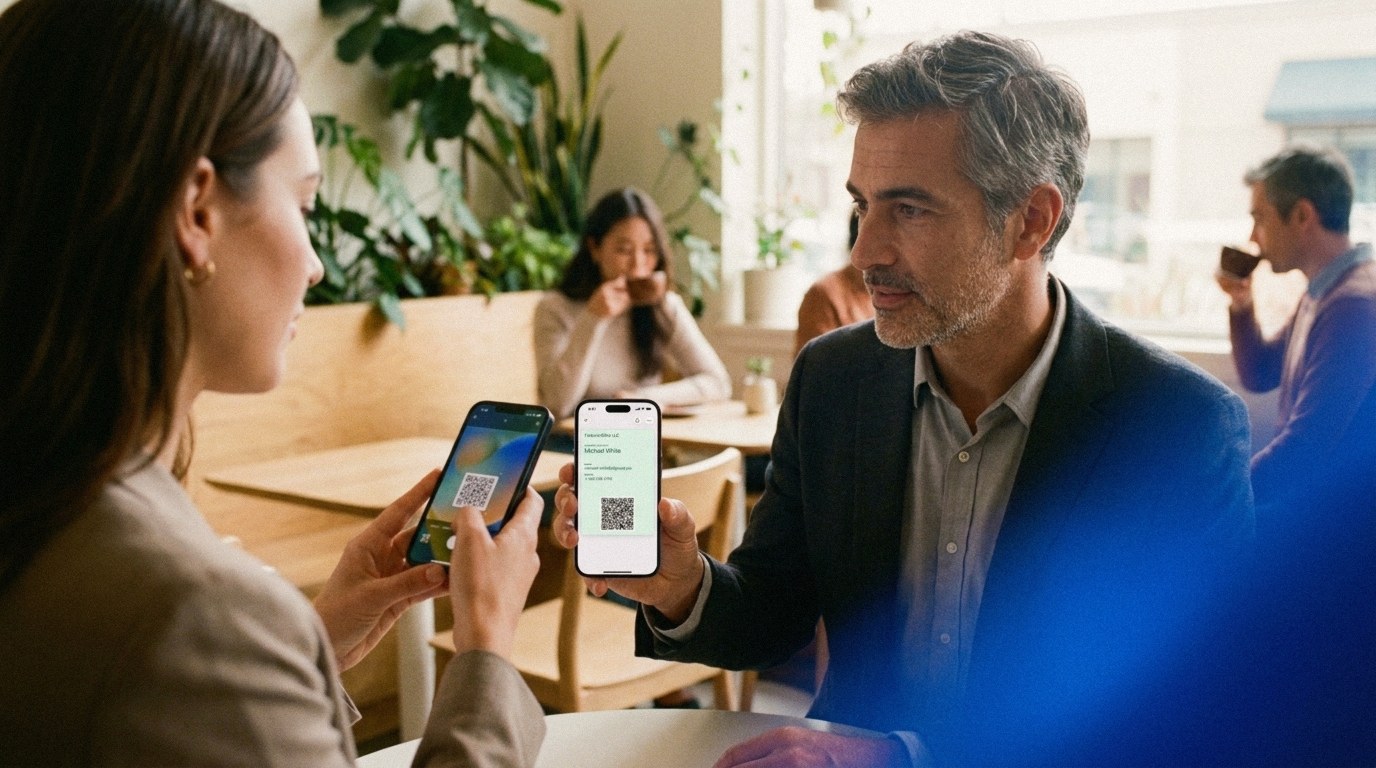
Two things make this dependable. First, it works offline, because nothing has to reach a server during the scan, which matters in a crowded hall where the signal drops to nothing. Second, there's no tap technology to fail: sharing is a plain camera scan, not an NFC tap, so it doesn't depend on the other phone supporting a particular chip. QR scanning is everywhere now, with mobile QR-scanner users in the United States alone projected to pass 100 million (Statista, 2025).
When it's busy around you, that short path pays off: the code is right there, no patting your pockets, no "do you have one on you?" You stay in control of the moment instead of hoping the other person held on to your card. For the exact steps on the receiving side, see how a contact scans your card on iPhone, and our QR code business card guide goes deeper on the sharing side.
Fixed card or Editable Card: what changes in your wallet?
There are two variants, and the difference shows up mainly in how the pass behaves in your wallet. The fixed card is frozen once you create it and needs no account. The Editable Card can be changed anytime, and your pass in the wallet then updates on its own.
| What matters | Fixed card | Editable Card |
|---|---|---|
| Account | Not needed | Optional |
| Change details/design | Create a new card | Editable anytime |
| QR code | Static, no tracking | Static, no tracking |
| Pass in the wallet | Stays as created | Updates automatically |
Here's the part people ask about: both variants use the same static QR code, which works offline and tracks nothing. When you edit the Editable Card, the system simply regenerates that static code and refreshes the existing pass in place. If the card contains an email address, you can request a time-limited link from the edit page and update it without an account.
This is exactly what a card in your wallet can do and a printed one can't. Change your number, update it once on the Editable Card, and your own pass shows the new details. There's no new card to hand out and no stack of paper to bin. For most people the fixed card is plenty, because it's the most direct route; you reach for the Editable Card when your details are likely to change.
Why keep your card in your wallet instead of an app or a link?
Because the card is on the device you always carry, and you share it directly, with no app to open and no link to load. Digital wallets are already part of daily life, and the market for digital business cards is climbing with them, projected to grow from about $215 million in 2025 to roughly $680 million by 2035 (Research Nester, 2025).
The trend points clearly toward the phone. Some tools still hide the card behind an app your contact has to install first, or behind a link that breaks the moment a page won't load. In your wallet, the card is right on the device and in a format every phone already knows. It's also made to look like you: you enter your details, pick a color and a logo, and you end up with one clean pass in Apple or Google Wallet. That calm, consistent impression is the thing people remember from a first meeting, and you won't get it from an improvised solution. If you want the case for skipping the app entirely, our guide to a digital business card without an app makes it in full.
Frequently asked questions about wallet business cards
The same questions come up whenever someone first puts a digital business card in Apple or Google Wallet. Here are the short, practical answers.
Do I need Apple Wallet or Google Wallet?
That depends on your phone, not on the card. You use Apple Wallet on an iPhone and Google Wallet on an Android phone. With DigiCard Pro, every card is generated for both wallets anyway, so you never pick the wrong one, whichever phone you carry.
Does the other person need an app to receive my card?
No. Your contact scans the QR code with the normal camera app on their phone, and the prompt to save your details appears right away. This works the same on modern iPhones and Android phones, with no app, no sign-up, and nothing to install on their end.
Does a wallet business card work without internet?
Yes. Your contact details are encoded directly in the QR code on your pass, so neither phone has to be online for the scan to work. In a packed conference hall where the signal drops out, that offline exchange is a real, practical advantage.
Can I change my card after I save it to my wallet?
It depends on the variant. A fixed card is frozen once created, like a printed card, so you make a new one in minutes if a detail changes. With the Editable Card you can update your details and design anytime, and the pass refreshes automatically in your wallet.
What does a digital business card for the wallet cost?
With DigiCard Pro the card is a one-time purchase, not a subscription. Creating it is no-commitment: you fill in your details and see a live preview right away. Only the finished pass for your Apple or Google Wallet is the paid step, with no monthly fees after that.
One card, both wallets
A digital business card in your wallet is the simplest way to share your details, and you don't even have to choose between Apple and Google. Every card is generated for Apple Wallet and Google Wallet; which one you use follows your phone. You save it with one tap and share it by QR code, which the other person simply scans.
-
One pass in Apple or Google Wallet, always on the phone you carry.
-
Shared by QR code, with no app for the other person.
-
A fixed card with no account, or an Editable Card whose pass updates on its own.
Deeper into the wallet:
Getting started:
Ready to try it? Create your card in the DigiCard Pro generator and watch the live preview show how your pass will look in Apple or Google Wallet.