QR Code Business Cards for iPhone: Share Contacts Fast
Never fumble for a paper card again. Keep your QR code business card ready on iPhone and share contacts the moment a conversation clicks.
A QR code business card for your iPhone is one of the fastest ways to share your contact details without typing errors. Instead of searching for a bent paper card, you take out your iPhone. One quick scan, and your details are saved by the person you just met. That makes networking more efficient and leaves a modern impression.
Key Takeaways
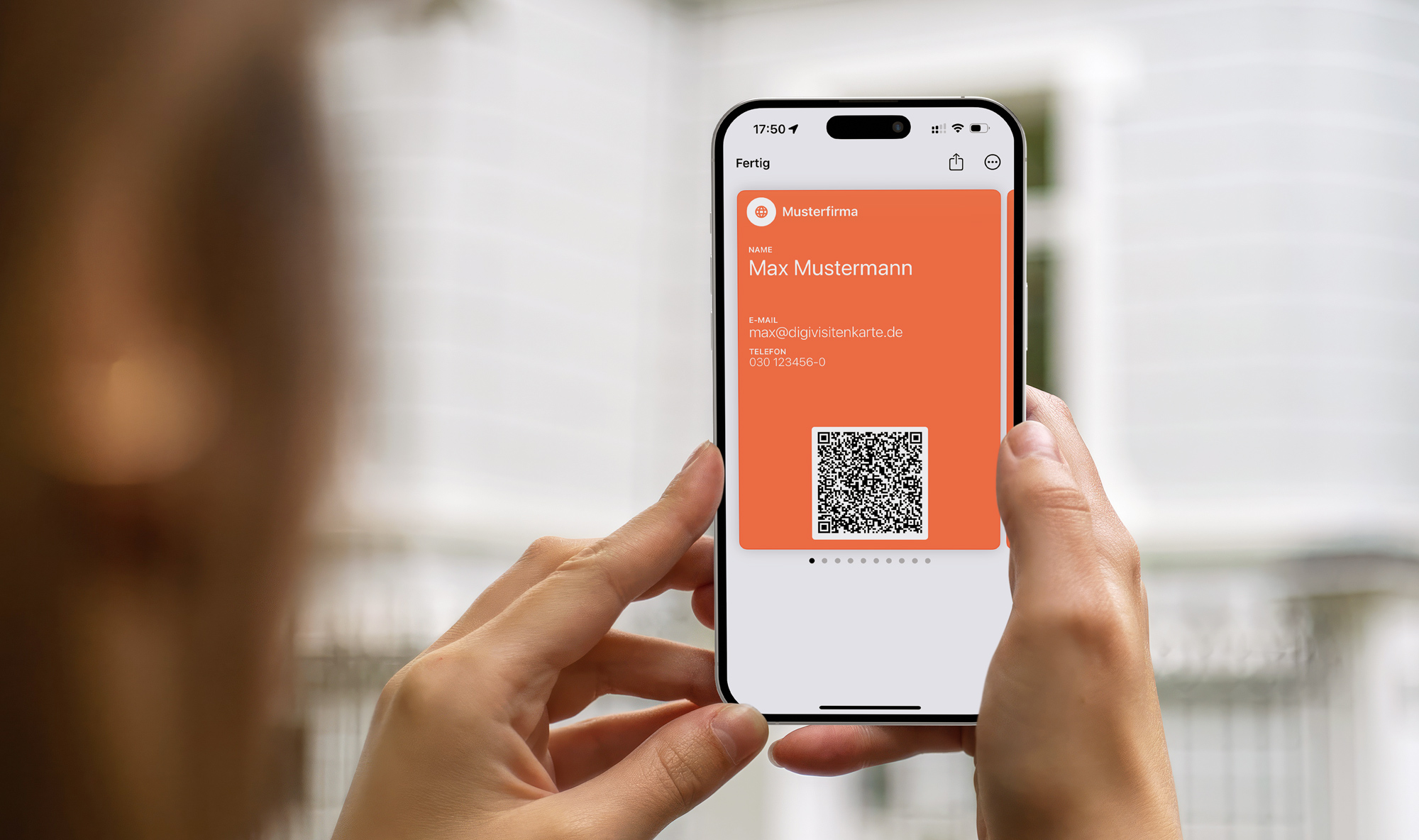
- Your card lives in Apple Wallet. To share it, open the card, the other person scans the QR code, done, with no app.
- Paper cards rarely survive the week, and they go stale the moment a detail changes. A scanned QR drops your details straight into the address book.
- Setup takes a few minutes. A fixed card needs no account; if you want to change your details later, choose the Editable Card.
Why a digital business card changes your networking
You know the situation. You're at an event, the conversation is going well, and then the awkward search for a business card begins. With a digital card in Apple Wallet, that moment disappears. You take out your iPhone, your contact scans the QR code, and all your information lands in their address book without errors.
That small gesture shows you're digitally prepared and well organized. It also saves the recurring cost of reprinting paper cards that go out of date the moment your number or role changes. Adobe pegged the waste at around 88% of paper cards discarded within a week (Adobe, 2016); a card on your phone simply stays with you.
The everyday digital advantage
The biggest advantage is the smooth process. The whole exchange, from showing the QR code to saving the details, takes only a few seconds. Mistakes from manually typing names, numbers, and email addresses are gone. QR codes are part of daily life now: since iOS 11, the iPhone camera reads them directly, with no extra app.
Traditional vs. digital business cards
This comparison shows why the QR code option for iPhone is ahead in almost every practical situation.
| Feature | Traditional business card | QR code business card (iPhone) |
|---|---|---|
| Exchange | Search for a card and hand it over | Fast scan directly from the screen |
| Data capture | Manual typing, prone to mistakes | Automatic and reliably structured |
| Freshness | Outdated when details change | Create a new version when details change |
| Cost | Ongoing printing costs | One-time creation |
| Availability | Limited quantity, easy to forget | Always with you on your iPhone |
| Impression | Classic, but often feels old-fashioned | Modern, professional, and sustainable |
A digital business card isn't just a copy of the paper version. It's a real improvement. It optimizes the most important moment in networking, the first contact, and helps you stay in the other person's memory for the right reasons.
Create your own QR code business card in minutes
Creating a digital business card is surprisingly simple. You don't need technical expertise or special software, just a few minutes and a clear idea of which details you want to share.
The key is choosing your information intentionally. Less is often more. Focus on what matters for a strong professional first impression.
What information belongs on the card?
An overloaded card feels confusing. A solid version includes these core details:
-
Full name and role: This creates immediate clarity and context.
-
Company: The name of your business or brand.
-
Email address: The best address for professional inquiries.
-
Phone number: Your business mobile or landline number.
-
One key link: Usually your LinkedIn profile. Creatives might link a portfolio, and in sales a booking link often works best.
Behind this is a technical standard, the vCard format, an electronic business card that almost every smartphone can read. When someone scans your QR code, the iPhone recognizes the details and suggests saving them as a new contact.
Create once, use again and again
A simple online generator turns this information into a QR code in a few steps. You enter your details, and the tool does the rest. Check every field carefully: a small typo in the email or a transposed digit makes the code far less useful. Once it's correct, you have a durable, reliable solution for everyday networking.
For more on doing this at no cost, read the guide to a free QR code business card.
Store your business card directly in Apple Wallet
Your QR code is ready, the first step is done. But how do you make sure your card is instantly available at an event? The simplest answer: add it to Apple Wallet as a pass. For a full walkthrough, see the guide on the Apple Wallet business card. If you're weighing Apple against Google, the Apple and Google Wallet overview covers both.
The advantage is clear: in Apple Wallet, your card is a double-click of the side button away. That saves the seconds you'd otherwise spend unlocking your phone or hunting for an app.
Always available, even without internet
Once your card is in Apple Wallet, you don't need an internet connection to show it. That's valuable at trade fairs with overloaded networks or on trips abroad. Your contact scans the code straight from the screen, and the exchange still works. Because QR recognition is built into both iPhone and Android cameras, almost anyone can receive your details with no extra app.
A tip for events: your card on the lock screen
With the Editable Card and an account, iPhone users can switch on a handy extra: your card appears at a location you choose, such as the trade fair venue, right on the lock screen. You show your QR code without even unlocking the phone. This location-based feature is Apple-only and optional, and you enable it yourself in your account.
Personalization for a stronger brand presence
A card in Apple Wallet is also a small branding surface. Use your logo and company colors so the pass feels consistent with your wider presence.
-
Add your logo: Your company logo creates instant recognition.
-
Adapt the colors: Brand colors keep the pass consistent with your other materials.
-
Use clear labels: Your name and company should be readable immediately.
A contact photo isn't part of this setup, which keeps your details clearly in focus.
Practical tips for smarter networking with QR codes
A digital business card is far more than a gadget. Used well, it becomes an icebreaker and a natural part of your communication. The trick is to introduce it confidently, not just hold out a phone in silence.
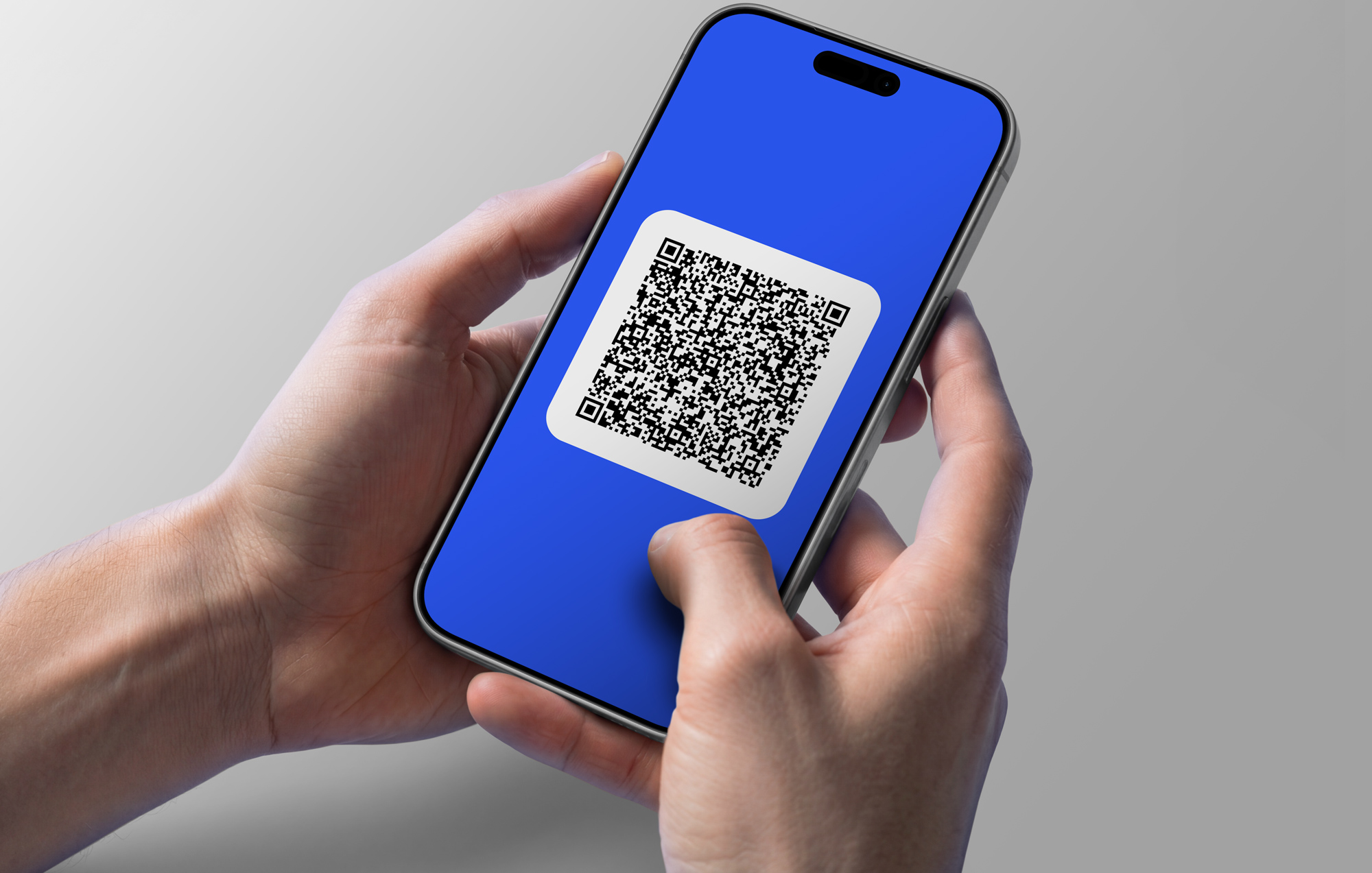
Imagine you've just had a strong conversation. Instead of ending it abruptly, transition smoothly: "That was a really interesting insight. Let's stay in touch, just scan my code and you'll have all my details right away." A line like that makes the digital step feel like a welcome close.
Access it in seconds and guide the conversation
When the moment comes, you don't want to search. From Apple Wallet, a double-click of the side button brings up your card, so you're ready in about a second.
Etiquette matters too. Read the room. In a calm one-to-one, the digital exchange is ideal. In a larger, lively group, wait for the right moment so you don't interrupt the flow. That personal touch turns a simple data transfer into the start of a real business relationship.
Common mistakes and how to avoid them
Switching to a digital business card is simple and effective. A few common pitfalls are still worth knowing, so your QR code business card on iPhone works reliably with every contact.
One mistake appears again and again: overloading the QR code with too much information. Too much data makes it complex, which can make scanning harder for older cameras. Keep it simple, with name, company, phone, and email. A link to your LinkedIn profile is usually more valuable than five social accounts at once.
Test first, then network
Before you use the card for real, do a quick test. Scan it with several devices, not just your iPhone but also an Android phone. Do the details land cleanly in the address book? A digital business card is an excellent icebreaker, but it doesn't replace a good conversation. After the scan, keep talking. A smile and a relevant follow-up question feel confident.
Common questions about QR code business cards on iPhone
A few questions come up again and again. Here are the most common ones.
Do I need a special app?
No. You create your card in the browser and add it to Apple Wallet, which is preinstalled on every iPhone. To receive it, the normal camera app is enough. Neither you nor the other person has to download anything.
What if my details change?
It depends on the variant of your card. A fixed card has your details locked in, so you'd just create a new one. If you want to update anytime, choose the Editable Card and change it whenever needed. The pass updates automatically in your Apple Wallet.
Does the Apple Wallet business card work without internet?
Yes. Once your card is in Apple Wallet, you can show it offline anytime. The other person scans the QR code straight from your screen, no connection needed. That's especially handy at trade fairs with overloaded networks or when traveling.
Can I add a contact photo?
No. The card focuses on the essential contact details like name, company, phone, and email. That keeps the design clean and makes sure your details land reliably in the recipient's address book.
Ready to take your networking further? Create your own digital business card with DigiCard Pro and leave a modern, lasting impression with every new contact. Start with the DigiCard Pro generator.